

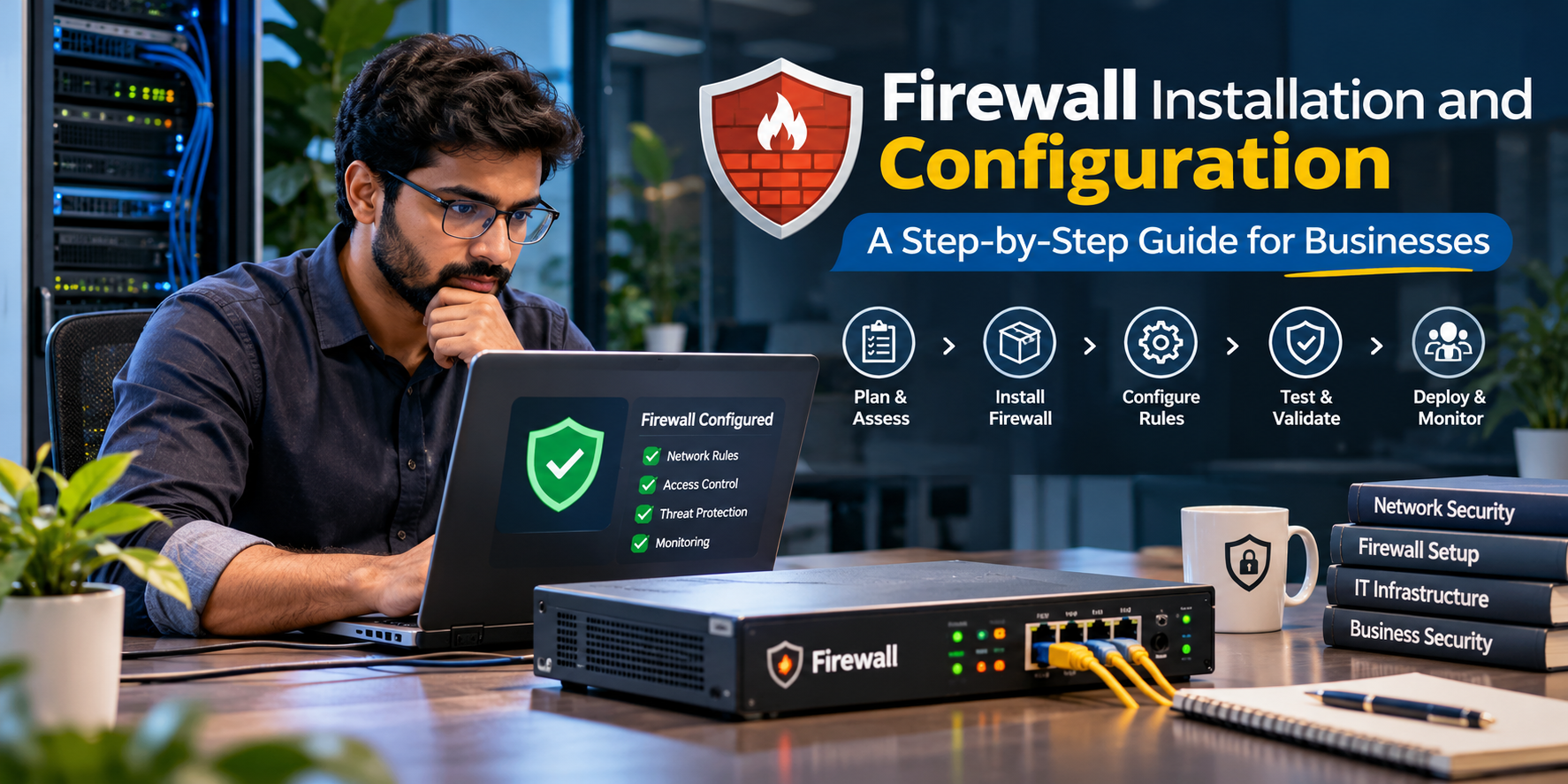
What comes to your mind when you hear the word "firewall"? It's a wall that protects you from something. That's exactly how it works. To understand how a firewall works, think of it as pawns on a chessboard, standing and protecting the King (i.e., your computers, files, and data) as the first line of defense. If any intruder tries to breach your network, they must get past this barrier before reaching your data castle.
Just as on a chessboard, the right position of the pawns decides the safety of the king. That's what we are going to see in this blog about firewall installation and configuration. It is a clear route map that puts each part in the right position and sets clear rules for what should be allowed. This guide breaks down firewall setup for business in seven steps.
Guard the Edge?
The edge is the vulnerable square on a chessboard. This also applies to networks. The attacker will target the edge of your network, like your firewalls and your virtual private networks. According to Verizon's 2025 breach report, edge devices made up 22% of vulnerability exploitation targets, a big jump from 3% in 2024.
Firewall Configuration Step by Step
First, open the firewall. Next, connect the internet line from your router to the WAN port of the firewall. Then, connect the LAN port of the firewall to the internal switch. Finally, turn the firewall on and connect your computer to it using the address provided by the vendor. Different brands use different port names.
Analyze the way all network traffic flows. Place the firewall between your internet router and your internal switch. Always manage the firewall from your most trusted computer, and its management interface should not be accessible to the public.
First, change the default admin password. Set up multi-level authentication for admin access and verify that this feature is available on your firewall. Also, make sure to update the device's firmware prior to making any other changes to the device, as outdated software is often used by attackers to breach your system.
Create different zones for your network. For example, have an office network, a guest Wi-Fi, and the servers in their respective networks. This way, a guest user can't access any of your sensitive data, accidentally or intentionally.
We've all seen a strong defense in boxing, where the boxer uses his blocking skills to ward off his opponent's punch. A good firewall configuration starts by blocking everything, i.e., enabling "deny all," and then, as rules are added, allows specific access to the teams or services that need it. Rules are read from top to bottom by the firewall, so keep that in mind when arranging them. Be sure to include a short description of each and every rule, and avoid generic rules like "allow any."
Features such as intrusion prevention, web filtering, and application control should be integrated into the system. If the company has remote employees, then provide VPN access to connect to the server with multi-factor authentication. Test each setting separately to ensure that it does not affect the day-to-day activities of the company.
Test the firewall from within the network as well as from outside the network. Double-check everything. Make sure the blocked traffic is actually being blocked and the allowed connections are still allowed. Check the logs for anything unusual. Always remember to back up your configuration before and after making changes.
Check your firewall often. Update the firmware as frequently as possible, and do not wait for the reminder message to pop up. Because business and software keep evolving, reviewing the firewall rules every few months is necessary. A reminder that setting up a firewall is not a one-time thing: regular monitoring is required.
Common Mistakes to Avoid
There are several habits that can cause a lot of damage to your firewall. For example: not regularly changing the default password, adding "any to any" rules for a short time and then forgetting to remove them, leaving the internet open for remote management, and not making a backup of your firewall settings.
The biggest mistake people make is to choose the Remind me later option (or postpone) when the update notification appears on their screen. This is a very big risk, because once security is compromised, attackers will move as fast as possible to access your files.
Where Redington Online Fits In
Redington Online makes it easy for partners to source firewall solutions from top brands like Palo Alto Networks, SonicWall, and Check Point. Our customer support team is available 24/7 to help you choose the right firewall for your customers and ensure a hassle-free firewall installation and configuration. Get the best quotes on the market today.
Firewall installation and configuration is just the start. Make a proper plan, as every setup needs a unique plan. Work through the seven steps mentioned above, test each process, and, as said above, remember that regular monitoring and updating of the firewall is important. That way, your first line of defense protects your data from any threat.
Explore Firewalls on Redington Online